How to send personalized emails category

How can I insert in the email message a link to unsubscribe from the mailing list?

unsubscribe link inside email body

SendBlaster can manage its distribution lists by downloading email messages from a dedicated e-mail address, different for each list. Using tags it is simple to insert an unsubscribe link into the HTML code :

<a href=”mailto:#managingemail#
?Subject=Unsubscribe”>Unsubscribe</a>

  • Each email with subject “Unsunscribe” received by the Mailing list managing email address will be automatically removed from mailing list.

The HTML code must be inserted in the HTML section of the message by clicking on “Show code” button; it can also be inserted as a link using the “Link” button in the message format bar (in which case the text mailto:#managingemail#?Subject=Unsubscribe will need to be inserted in the link window and, once the link is created, the displayed text can be modified to something like “Unsubscribe” or a similar text).

  • With current SPAM-CAN laws, we need to have an unsubscribe link for our e-mailings. This little tutorial will be useful to understand how to update the subscription status of our contact lists using unsubscription links inside email body. The automated process of unsubscription link insertion is possible with SendBlaster Bulk Email Software.

Email merge software tutorial for newsletter personalization

Email merge means sending personalized emails. Every email marketer knows that the main thing in sending bulk emails is the email personalization, as well as sending only bulk emails that contain useful information for the mailing list subscribers.

Examples of email merge

Dear User -> Dear Samantha
Hello Customer -> Hello Mr. Smith

Email merge, often called mail merge, is a common email marketing practice since it has been proved that personalized emails with merged informations are much more appealing than anonymous emails. Merged emails also help in building a relationship with your email audience.

Email merge is done by inserting into the email body, some “tags” that will be removed by the emailing software and substituted with the final email text within merged emails sending.

The email merge software for email marketing SendBlaster has a complete email merge easy to use suite with integrated tags and customized tags support.

With email merge feature your database data will fill your email automatically.

if this is your database:

email merge database info

these will be your customized emails after the email merging:

customized and personalized merged emails

The Software for email merge SendBlaster takes all the tags into the email template you have prepared and sends customized emails to your entire contact list.

Tags customization for email merge

Included into the software for newsletter merging SendBlaster you find 15 ready to use tags for common email merging needs. You will always need to put your recipients name inside the email body and even inside the email subject. You may also want to refer to your business products or events without editing each email one by one.

Email merge is mandatory when we work on large email marketing database of customers.

Example of tags customization inside software for email merge SendBlaster

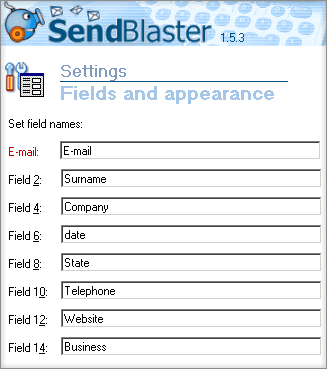
The default for custom email merge field N°15 is AGE. If you do not plan to use the AGE informations inside your customers database, and may want to display the product your customers bought and you want to send newsletter for, this is how to set a custom Tag field for email merging purposes:

  • go to Fields and Appearance section inside the Email merging Software SendBlaster. You will se all the allowed fields for email merging with their label.
  • Enter inside field 15 the text: product

In your email database list you should write for each customer the Product name they have bought (you can also automatize the new database records with website optin modules with custom fields)

Let’s suppose you are running a furniture shop, and each customer has a field of interest because they are resellers.
This is how your customers database will show:

Email Name Surname Product product-offer
fred@furniture.com Frederik Peters Office chairs starting from 59$
emma@dot.com Emma Forrest Sofa starting from 259$
kyle@restaurant.com Kenny Leary kitchen tables starting from 1259$

The automatic email merge engine will display the database value where you will put the merging field tag.

Example:

Dear #name#,
This is your #month# newsletter on #product# updates

email merge tags use example

personalized sent email will become:

Dear Frederik,
This is your August newsletter on Office chairs updates

email merge final result into inbox, with personalized email

Conclusions

This email merge tutorial uses Email Merge Software SendBlaster to personalize automatically each sent email.

Send personalized emails

Send personalized emails is a common email marketing feature. A personalized email that contains your customer’s name and surname will be probably be opened. Many studies about email marketing analyze the impact of personalized emails in bulk email opening rate. This is how you can configure SendBlaster mass emailer software to send out to every contact in your mailing list a single and personalized email.

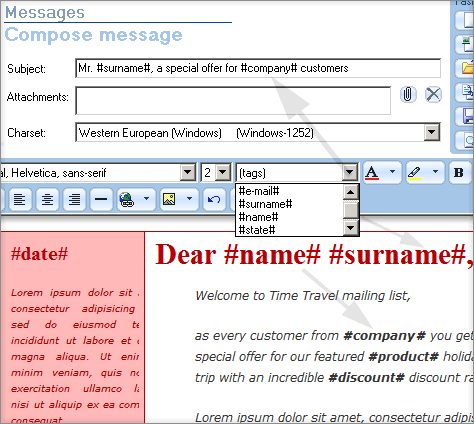
This is how you can put customer’s name inside every email (just 2 steps!)

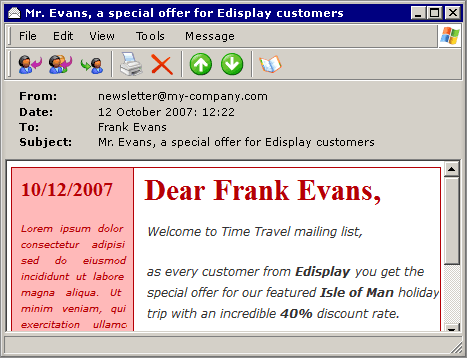
Your personalized email inside your customer’s inbox

final rendering of the personalized email in your customer’s inbox

Notice that every email can be automatically customized even inside subject field. Your email subject as well as email body can contain your customers details: name, surname, company… and even the special offers you reserve them. This means that both body and subject of the email support tagging.

arrow

Personalized Email software editor

Send Personalized email process, putting tags inside email text

Customize each email tag field

Sending personalized emails with a newsletter software has many advantages. For example you can create custom tags that match your company focus.

Each field is customizable, as well as the tags in the merged email

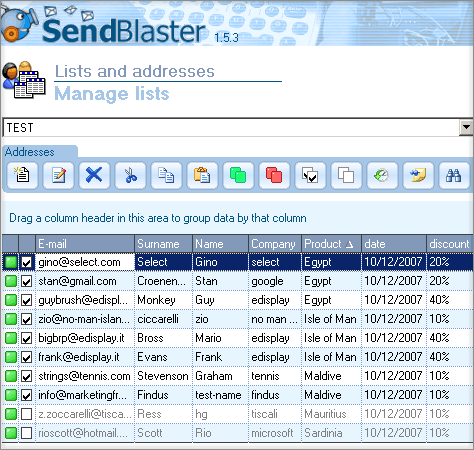
This is the main mailing list view

All the information that you have in your mailing list database will be sent to each recipient in a different email.

the mailing list management window list view

Try the free version of our bulk emailer

Download the free bulk emailer here

You will find all the mailing merge functions, and you will see how it’s easy to personalize every single email that you send to your customers.


Close
E-mail It