No recurring fees. Pay only once and it will work forever!

Bulk email software for email marketing
SendBlaster is the best bulk email software to manage mailing lists and set up email marketing campaigns in few steps. SendBlaster combines into one product the practicality of a mass email software with the flexibility of a bulk email web service. On the one hand you create newsletters and manage lists directly on your desktop: on the other you get a cloud email tracking service to handle reporting and improve your email campaigns.
Our brand new release SendBlaster, full of amazing features, is available both as a free email sender software download and a professional one with no subscription needed, just a single payment for a lifetime license. Plus, we are proud to offer a 15 days money back guarantee.
Free DownloadBuy SendBlaster Pro
Latest release: 4.4.2 | Release date: 2020/04/10 | Size: 40 MB License agreement – How to uninstall
What’s new in SendBlaster | Video tutorials | Free VS Pro comparison
Trusted by 100.000+ customers

Email marketing made easy
A good mass email campaign doesn’t need expensive web-based solutions: it can be handled effectively on your desktop or laptop pc, keeping your own email lists private and managing every aspect of the strategy on our mass email software. It’s easier, safer, and cost effective.
Email marketing is based on a trusted relationship with your customers: SendBlaster bulk mailer will help you build it, keep it and improve it.
Create effective emails
With our mass mailing software you will be able to compose beautiful emails that convert — that create real profit. How? Using our free email templates, sorted by categories to help you choose the right one. Creating a layout with SendBlaster’s embedded email editor or an external HTML editor. Purchasing a tailor made template from our professional web designers and email marketing experts.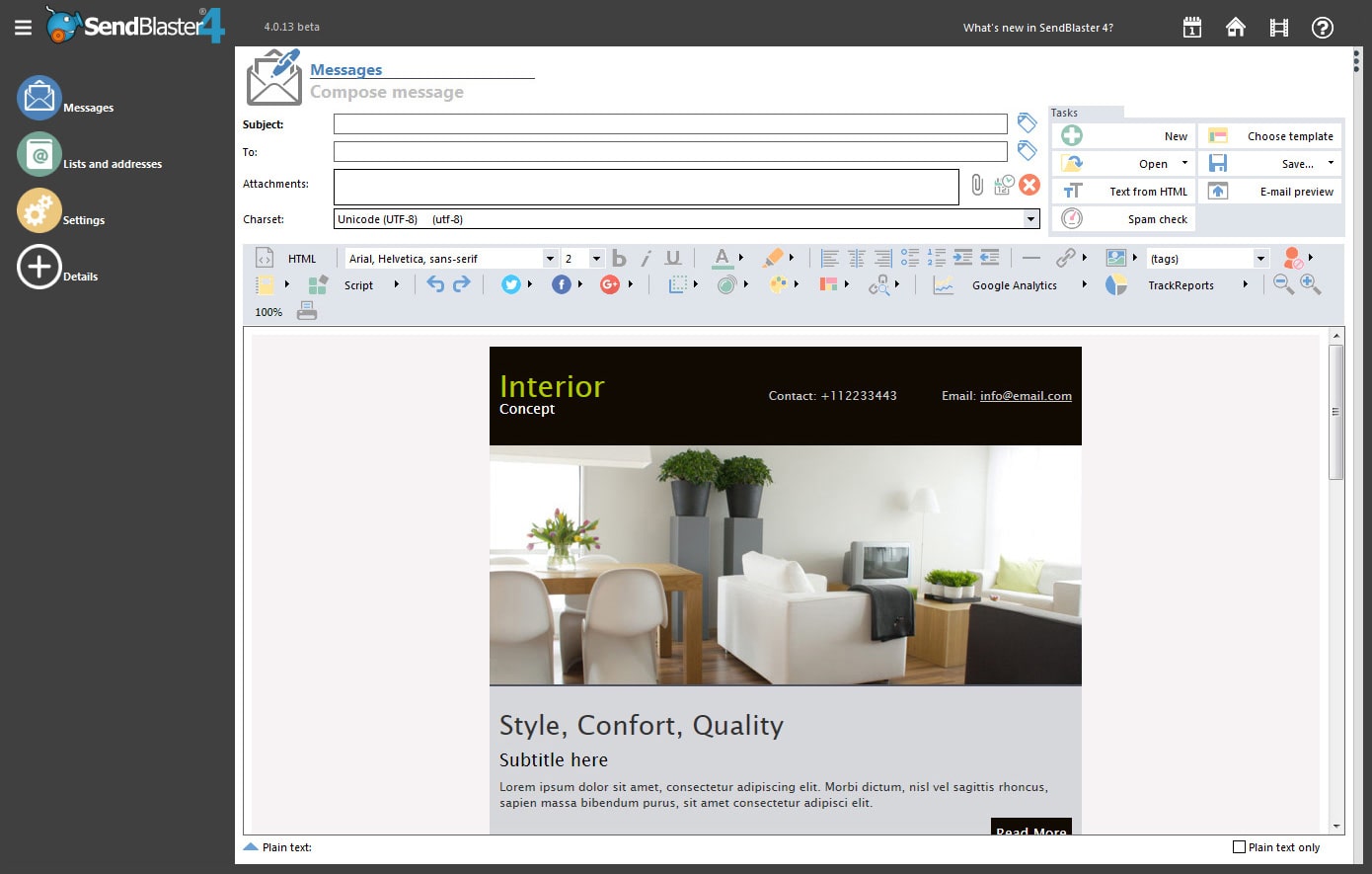
Build your permission-based list
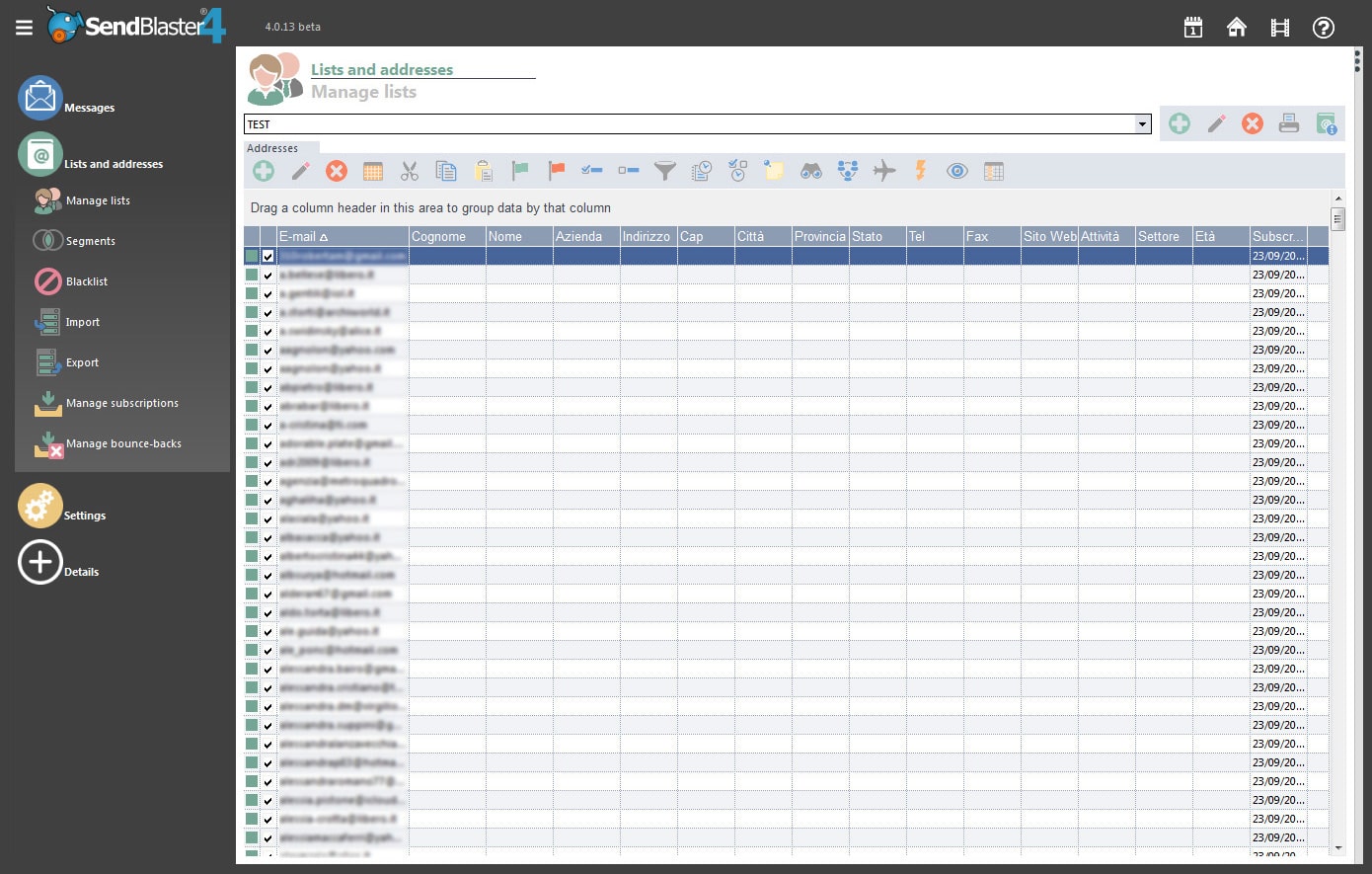
The only effective (and legal) way to run a mass email campaign is to send emails only to people who allowed you to: that is, to build an opt-in permission-based list of addresses. Our bulk mail software makes it amazingly easy. You can create customizable web forms for your site to let your users subscribe in a few clicks; then record all collected data in one or more lists, to which you can send separate messages.Analyze the results of your mailings
An effective email marketing requires a thorough data analysis. Our mass emailing software and Google Analytics will let you know if, after reading your emails, customers have purchased your products, subscribed to your website or made any other actions.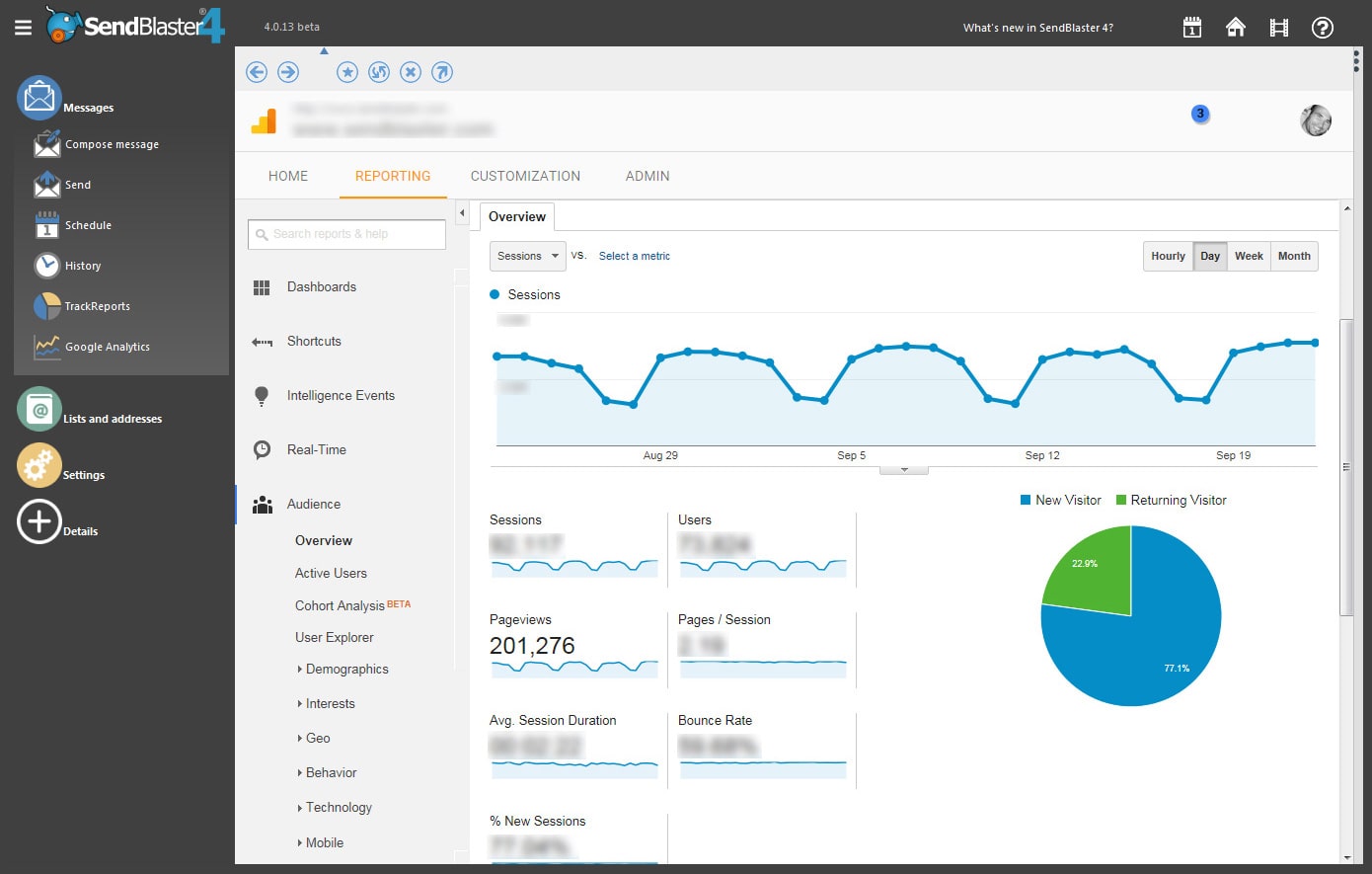
Meet our happy customers
“After years of searching and trying out different bulk email software, I think that I may have finally found “the one” — your software looks great!”
Janet Crosby
“We’re using monthly emails to inform our customer about product news and distribute tutorials. Now we can do this much easier than before”
Ralf Richter
“Very good… now I can send up to 10k newsletters per day, thank you for your support and for your very nice piece of bulk mailer software”
Oksana-k
Send mailings or newsletters with our bulk email software and start your marketing campaigns now!
Free Download